

The Complete Guide to Fast, Clean Background Removal Online (With Free Credits on sweepBG)
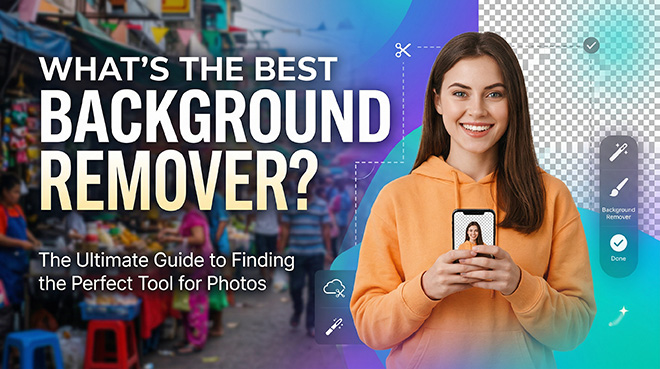
What background removal does
- AI isolates the subject (product, person, pet) and deletes everything else.
- Transparent PNG: best for ecommerce, compositing, flexible design.
- Solid color (PNG/JPG): white, black, or brand color for consistency and contrast.
- Custom background (PNG/JPG): scenes, gradients, textures, branded canvases.
Why it matters
- Professional polish for “catalog-ready” images.
- Better conversion and clarity by reducing distractions.
- Brand consistency across channels.
- Faster publishing without heavy design tools.
- Creative flexibility to reuse subjects in many layouts.
Manual vs. AI
- Manual: maximal control; slow and skill-intensive.
- AI: seconds to great results; rare edge cases may need light touch-up.
Formats and resolution
- PNG with transparency: default for clean cutouts (alpha channel).
- JPG: smaller, no transparency; use when background is final.
- WebP: efficient alternative depending on destination.
- Resolution: size to your platform; upscale only when needed, starting from the best source.
When to use transparent vs. solid vs. scene
- Transparent: for multiple designs or unknown backgrounds.
- White: timeless, common for storefronts; strong contrast.
- Black/dark: great for bright/reflective products, dramatic feel.
- Brand color/gradient: instant visual consistency.
- Scene/texture: add context and storytelling.
How to remove a background in seconds on sweepBG
1) Go to sweepBG.com.
2) Upload a JPG or PNG.
3) Let AI isolate the subject.
4) Choose output: transparent PNG, solid color, or place into a new scene.
5) Download. Guests get free credits to try it.
Tip: Inspect at 100% for hair, jewelry, fine straps. If edges need work, try a version with stronger subject–background contrast or lightly adjust lighting, then re-upload.
Enhance with the built-in editor
- Crop/straighten; set aspect ratios per platform.
- Adjust exposure/color for true-to-life results.
- Add concise text/brand marks for promos.
- Refine composition: center, margins, grid.
- Add subtle effects: soft shadows, gentle contrast.
Pro tip: Keep edits subtle for ecommerce; push contrast/saturation a bit more for social/ads.
Using the upscaler
- Use when the source is small, you need print/hero sizes, or high-DPI sharpness.
- Steps: remove background → upscale 2x/4x → check fine lines/text/patterns → light sharpen/noise reduce if needed → export (PNG for transparency; JPG/WebP otherwise).
Real-world recipes
- Ecommerce products: simple lighting → sweepBG → transparent or white/brand color → align/crop/exposure → optional soft shadow.
- Fashion/headshots: remove background → soft gradient/brand color → lift face, adjust warmth → export to platform size.
- Social creatives: cut out → bold/texture background → short text + logo → upscale if needed → crop duplicates to square/vertical/landscape.
- Presentations: remove backgrounds from photos/headshots/screens → consistent margins/grid → restrained colors.
- Banners/hero images: cut out → gradient/brand art → upscale to target → efficient export (PNG if transparent, else JPG/WebP).
Tips for better AI removal
- Maximize subject–background contrast.
- Use even, soft light; avoid harsh shadows and motion blur.
- Minimize compression; start with clean files.
- Simplify the frame; remove lookalike clutter.
- Watch reflections/translucency on glass/liquid; adjust angle/lighting.
Common mistakes
- Over-sharpening halos on solid backgrounds.
- “Floating” subjects without soft shadows/reflections.
- Slightly mismatched whites across grids; use a master swatch.
- Ignoring edge halos; always scan at 100%.
Quick checklist
- Capture: simple background, even light, low noise.
- Remove: upload to sweepBG.com for instant cutouts.
- Edit: crop, balance exposure, set background (transparent/white/brand/scene).
- Upscale: enlarge only as needed.
- Export: PNG for transparency; JPG/WebP otherwise.
- Publish: descriptive filenames, alt text, consistent brand visuals.
Conclusion
Clean background removal delivers fast, high-impact improvements. With sweepBG, you get studio-quality cutouts in seconds, then refine and scale with the editor and upscaler. From storefronts and ads to portfolios, this workflow gets you from “good enough” to “publication ready” quickly. Try it with free guest credits at sweepBG.com.
 Continue with Google